


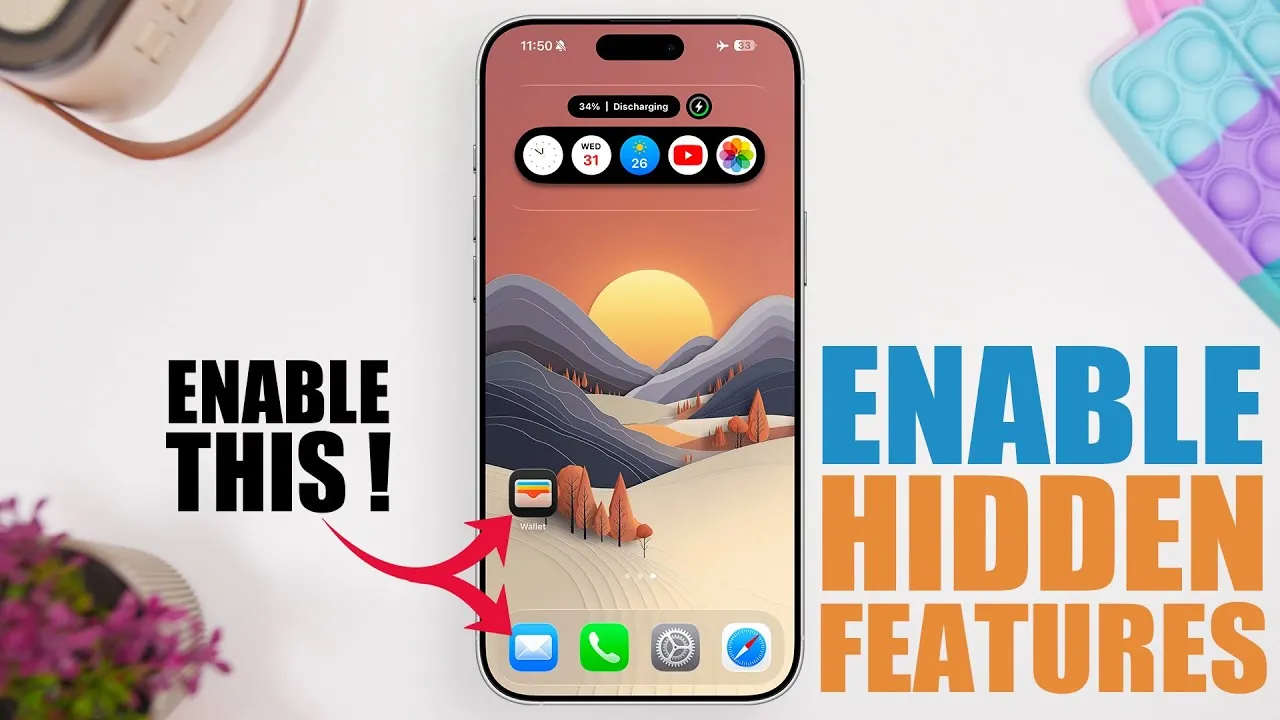
Apple’s iOS 26 introduces a range of hidden features designed to enhance your iPhone experience. These secret settings provide greater customization, improved functionality, and added convenience. Whether you’re aiming to streamline daily tasks, improve accessibility, or optimize app performance, these features can significantly elevate how you use your device. Below, we explore 10 of these lesser-known settings and how they can make your iPhone even more powerful. The video below from iReviews gives us more details.
1. Accessibility: Screen Flash Notifications
Missing notifications in noisy or distracting environments can be a common issue. iOS 26 addresses this with the screen flash notification feature. In addition to the flashlight alert, your screen will now flash when you receive notifications, making sure you never miss an important alert. This feature is particularly beneficial for individuals with hearing impairments or those who often keep their phones on silent mode. To enable this setting:
- Navigate to Settings > Accessibility > Audio/Visual.
- Toggle on LED Flash for Alerts.
2. Wallet: Seamless Order Tracking
The Wallet app now offers integrated order tracking, pulling purchase and delivery details directly from your email. This feature consolidates real-time updates into one convenient location, eliminating the need to switch between apps or search through emails. Whether you’re tracking a package or monitoring a delivery, the Wallet app ensures you stay informed with minimal effort.
3. Camera: Lens Cleaning Alerts
Blurry photos caused by smudged lenses are no longer an issue with iOS 26. The new lens cleaning alerts notify you when your camera lens requires attention, making sure your photos and videos remain sharp and clear. This feature is especially useful for photography enthusiasts or anyone who frequently captures moments on their iPhone.
4. Control Center: Microphone Input for Screen Recording
Screen recording becomes more versatile with the ability to include microphone input in iOS 26. This feature is ideal for creating tutorials, narrating gameplay, or providing verbal feedback during recordings. To activate this option:
- Open the Control Center and long-press the Screen Recording icon.
- Select Microphone On to include audio input.
5. Maps: Offline Maps with Automatic Updates
Navigating areas with limited connectivity is now easier with the offline maps feature in iOS 26. You can download maps for specific regions and enjoy automatic updates to ensure accuracy. This is particularly useful for road trips, hiking adventures, or international travel where internet access may be unreliable. Simply download the maps you need in advance and explore with confidence.
6. Messages: Change Your Default Messaging App
For the first time, iOS 26 allows you to set a third-party app as your default messaging platform. Whether you prefer WhatsApp, Signal, or Telegram over iMessage, this feature gives you the flexibility to choose your primary communication tool. To adjust this setting:
- Go to Settings > Messages.
- Select your preferred messaging app as the default.
7. Notes: Lock Screen Note Customization
Taking notes from the lock screen is now more intuitive with iOS 26. You can customize this feature to either create a new note or continue editing the last one. This is particularly useful for jotting down quick ideas, reminders, or to-do lists without unlocking your device. To configure this setting:
- Navigate to Settings > Notes > Access Notes from Lock Screen.
- Choose your preferred option for note-taking.
8. Search: Switch Your Default Search Engine
iOS 26 enhances your browsing experience by allowing you to change Safari’s default search engine. Whether you prefer Google, Yahoo, Bing, or DuckDuckGo, you can easily switch to the search engine that best suits your needs. To make this adjustment:
- Go to Settings > Safari > Search Engine.
- Select your desired search engine from the list.
9. Audio Input: Choose Your Microphone
For users who frequently record audio or make calls, iOS 26 introduces the ability to select a specific microphone. Whether you’re using a Bluetooth headset, an external microphone, or the built-in mic, this feature allows you to choose the best option for your needs. To access this setting:
- Navigate to Settings > Sounds & Haptics > Microphone Selection.
- Choose your preferred microphone from the available options.
10. FaceTime: Eye Contact Simulation
FaceTime now includes an Eye Contact feature that enhances video calls by simulating natural eye contact. This subtle adjustment makes conversations feel more engaging and realistic, improving the overall video call experience. To enable this feature:
- Go to Settings > FaceTime > Eye Contact.
- Toggle the feature on to activate it.
Explore the Hidden Potential of iOS 26
The hidden features in iOS 26 highlight Apple’s commitment to improving user experience through thoughtful updates. From accessibility enhancements to greater customization options, these settings empower you to tailor your iPhone to your unique needs. By exploring and allowing these features, you can unlock new possibilities and enjoy a more personalized, efficient, and enjoyable device experience.
Advance your skills in Hidden iPhone features by reading more of our detailed content.
Source & Image Credit: iReviews
Filed Under: Gadgets News
Latest Geeky Gadgets Deals
Disclosure: Some of our articles include affiliate links. If you buy something through one of these links, Geeky Gadgets may earn an affiliate commission. Learn about our Disclosure Policy.

