


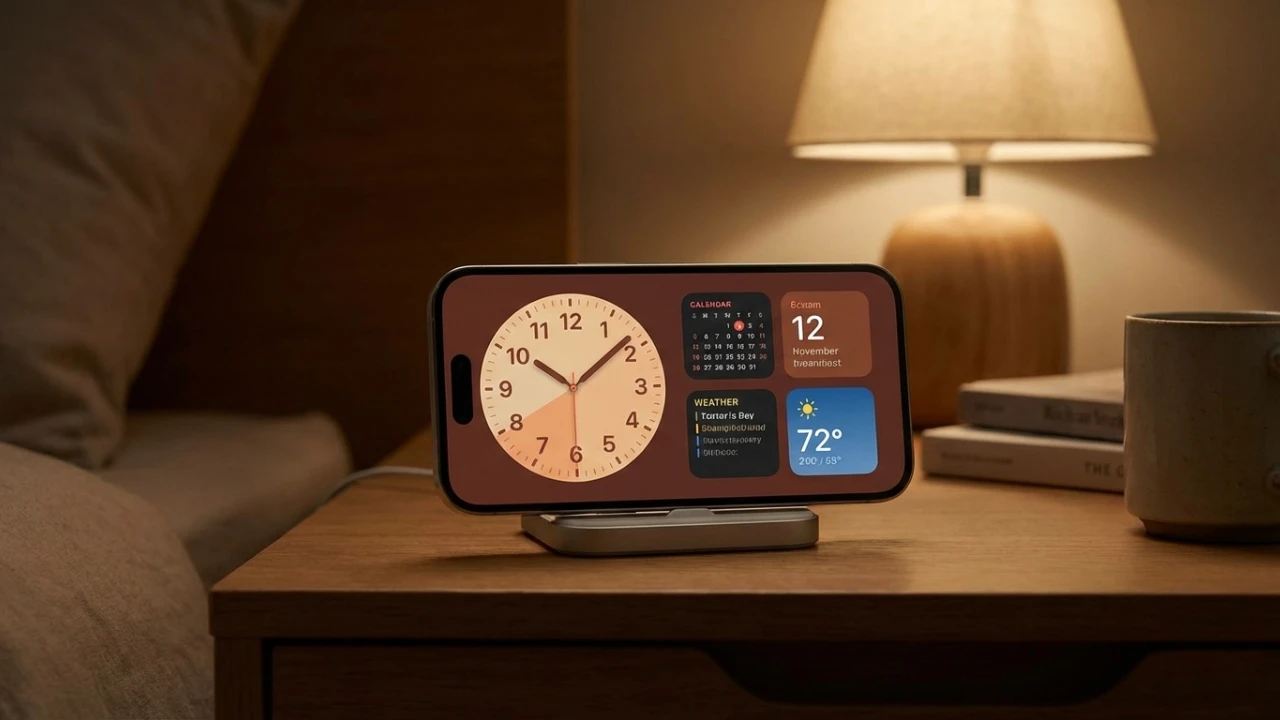
The iPhone’s StandBy mode is a highly versatile feature introduced with iOS 17, designed to transform your device into a multifunctional hub for productivity, entertainment, and home automation. Despite its potential, Apple provided limited guidance on its capabilities, leaving users to explore and uncover its full range of uses. By customizing settings and integrating third-party apps, you can adapt StandBy mode to suit your unique preferences and daily routines, making it a valuable addition to your iPhone experience. The video below from HotshotTek gives us more details.

How to Activate StandBy Mode
Activating StandBy mode is a simple process that requires minimal setup. To enable it, connect your iPhone to a power source and position it horizontally. This feature is compatible with both wired and wireless chargers, including MagSafe stands, offering flexibility for various charging setups. Once activated, StandBy mode transforms your iPhone into an interactive display, providing quick access to essential tools, notifications, and information. Its seamless activation ensures that you can start using it effortlessly, whether at your desk, bedside, or kitchen counter.
Customizing StandBy Settings
StandBy mode offers a range of customization options, allowing you to tailor its functionality to your specific needs. These settings can be accessed through your iPhone’s menu, allowing you to optimize the feature for convenience and usability. Key customization options include:
- Night Mode: This setting adjusts the display to a red hue, making it easier on the eyes in low-light environments and reducing eye strain during nighttime use.
- Motion-to-Wake: Automatically activates the screen when motion is detected, eliminating the need for manual interaction and making sure the display is ready when you need it.
- Notification Preferences: Manage which alerts appear in StandBy mode to strike a balance between staying informed and minimizing distractions.
These features allow you to fine-tune StandBy mode, making sure it integrates seamlessly into your daily life. Whether you use it as a bedside clock, a productivity tool, or a smart home controller, the customization options make it adaptable to a variety of scenarios.
Built-in Features for Everyday Use
StandBy mode is designed with three primary pages, each offering distinct functionalities to enhance your iPhone’s utility:
- Widgets: Display essential information such as weather updates, timers, and live activity tracking, all accessible at a glance.
- Photos: Showcase your favorite images in a slideshow format, with privacy protection enabled through Face ID to ensure only authorized users can view them.
- Customizable Clocks: Choose from a variety of clock styles, including analog, digital, and animated designs, to suit your aesthetic preferences.
In addition to these pages, StandBy mode integrates seamlessly with media controls, allowing you to manage music playback or connect to audio devices via AirPlay or Bluetooth. Live activity tracking further enhances its utility by providing real-time updates on events such as flight statuses, package deliveries, or sports scores. These built-in features make StandBy mode a practical tool for staying organized and informed throughout the day.
Enhancing StandBy Mode with Third-Party Apps
For users seeking to expand the functionality of StandBy mode, third-party apps offer a wealth of customization options and additional features. These apps enable you to personalize your StandBy experience further, aligning it with your lifestyle and priorities. Notable third-party integrations include:
- Icreen: Combine multiple widgets into custom watch faces, including animated designs, for a highly personalized display.
- Sports Alerts: Receive real-time updates on live sports scores and events, keeping you informed about your favorite teams and matches.
- Countdowns: Create visual countdowns for important events, such as vacations, anniversaries, or project deadlines, making sure you never miss a significant moment.
- HomeKit Integration: Control smart home devices, monitor energy usage, and manage appliances directly from your StandBy screen, streamlining your home automation experience.
By using these third-party apps, you can unlock new possibilities for StandBy mode, transforming it into a personalized hub that caters to your specific needs and interests.
Additional Tools and Utilities
StandBy mode also includes a variety of tools and utilities designed to enhance your iPhone’s functionality. These features provide quick access to essential information and controls, making sure that everything you need is always within reach. Highlights include:
- Communication Tools: Manage calls and voicemails directly from the StandBy screen, streamlining your ability to stay connected.
- Weather Updates: Stay informed about current conditions and forecasts with a dedicated weather widget.
- Media Playback: Control music and other audio content with integrated media controls, including support for AirPlay and Bluetooth devices.
- Visual Timer: Track tasks or activities with a built-in timer that features a visual hourglass animation for added clarity.
These tools enhance the practicality of StandBy mode, making it a valuable addition to your daily routine. Whether you’re managing tasks, staying informed, or enjoying entertainment, these utilities ensure that your iPhone remains a central part of your workflow.
Maximizing the Benefits of StandBy Mode
The iPhone’s StandBy mode is a feature rich with potential, offering a wide range of applications for productivity, entertainment, and home automation. By exploring its built-in settings and integrating third-party apps, you can customize the experience to align with your unique needs and preferences. Whether you’re tracking live activities, managing smart home devices, or simply enjoying a beautifully designed clock face, StandBy mode provides a flexible and practical solution for enhancing your iPhone’s utility. With its adaptability and ease of use, this feature is poised to become an indispensable part of your daily life.
Uncover more insights about iPhone StandBy mode in previous articles we have written.
Source: HotshotTek
Filed Under: Gadgets News
Latest Geeky Gadgets Deals
Disclosure: Some of our articles include affiliate links. If you buy something through one of these links, Geeky Gadgets may earn an affiliate commission. Learn about our Disclosure Policy.

